

Android Auto vs. Apple CarPlay: Which Is Better in 2026?
Connected cars · Technology explained
Android Auto and Apple CarPlay put familiar phone apps on a car’s screen. The better choice starts with your phone—but maps, voice control, wireless support and the vehicle’s own hardware decide how useful either system feels every day.
Updated October 17, 2026 · Features and compatibility checked against Apple and Google documentation.

The quick verdict
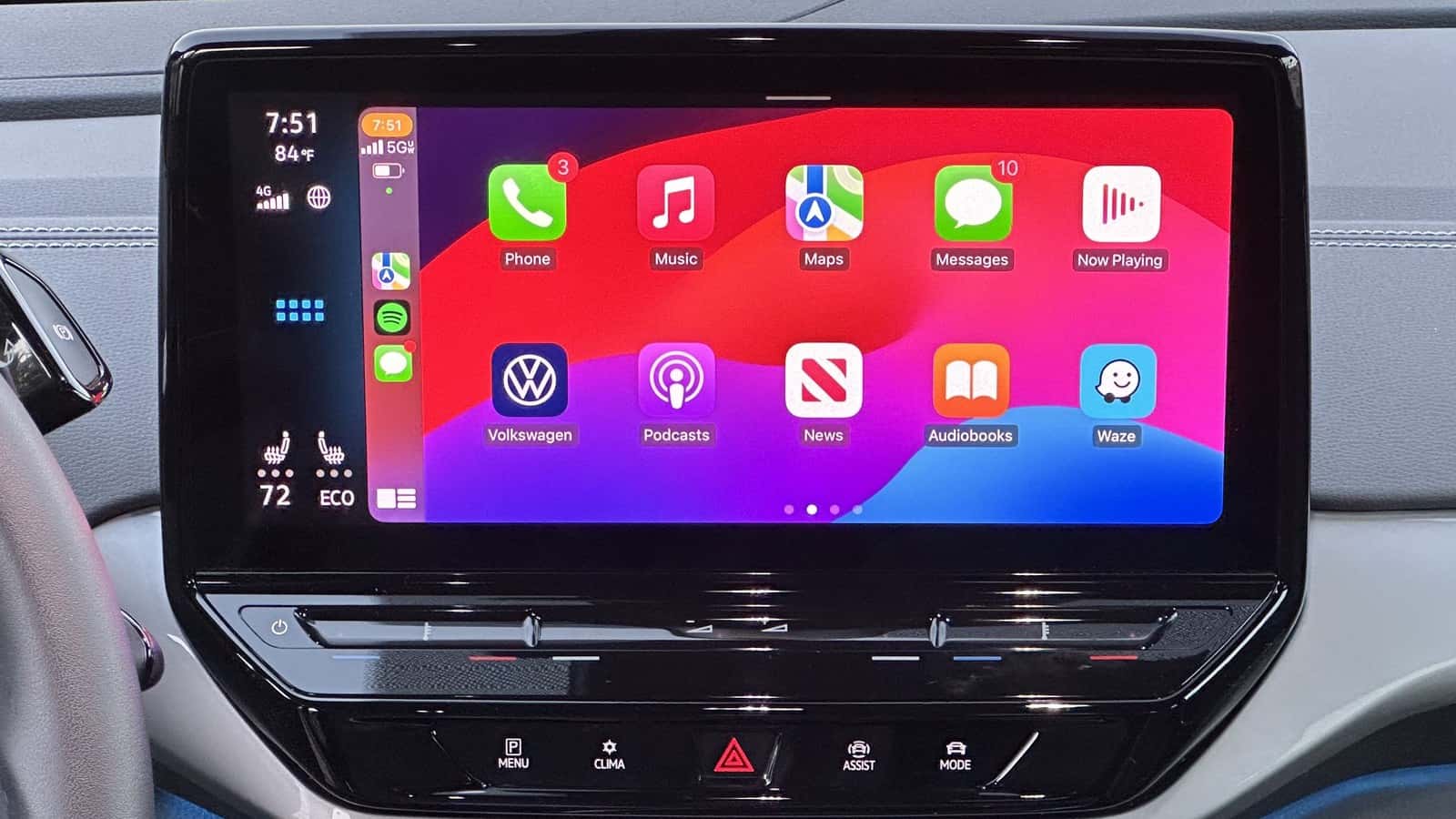
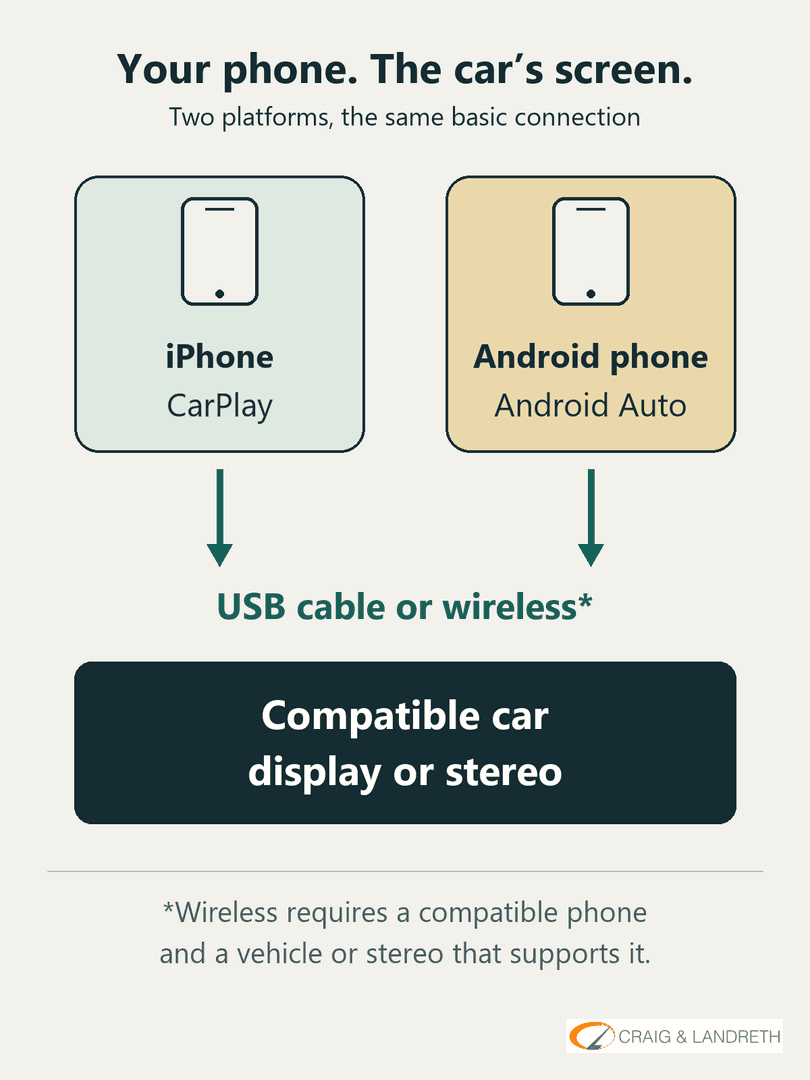
Choose CarPlay for an iPhone and Android Auto for a compatible Android phone. These are separate phone ecosystems, so you cannot run Android Auto from an iPhone or CarPlay from an Android handset. If different people share the car, support for both platforms is the most useful shopping target.
Beyond that, avoid choosing a vehicle from a screenshot alone. A readable display, accessible controls, the right connection and support for your essential apps matter more than declaring one interface the winner. This is a comparison of documented capabilities and practical buying considerations; it does not assign speed or reliability scores from a road test.
Android Auto vs. Apple CarPlay at a glance
| What matters | Android Auto | Apple CarPlay |
|---|---|---|
| Phone | Compatible Android phone; Google currently specifies Android 11 or newer. | Compatible iPhone; check the requirements for the feature you want. |
| Connection | USB or wireless when both phone and car support it. | USB or wireless, depending on the car or receiver. |
| Voice assistant | Gemini on eligible setups; availability and settings matter. | Siri, using supported voice and vehicle controls. |
| Navigation | Supported navigation apps, including Google Maps. | Apple Maps and supported alternatives, including Google Maps and Waze. |
| Music and communication | Compatible audio, calling and messaging functions. | Compatible audio, calling and messaging functions. |
| Personalization | Layout and available features depend on software and the display; newer features are rolling out. | App order and wallpaper customization; supported widgets and Live Activities. |
| Vehicle integration | Different from apps running natively in a Google built-in car. | Different from the deeper, vehicle-specific CarPlay Ultra experience. |
| Best shopping question | Does this exact car support my Android phone and the connection I want? | Does this exact car support my iPhone and the connection I want? |
Compatibility: the phone is only half the equation
Google’s current Android Auto requirements specify Android 11 or later, an active data plan, a compatible car or stereo and a suitable USB cable for wired operation. Android Go edition is excluded. Wireless operation also needs a compatible car or stereo and a phone with 5 GHz Wi-Fi support. A charging socket or Bluetooth badge does not establish Android Auto capability.
CarPlay needs a compatible iPhone and a car or aftermarket receiver that supports it. Apple’s compatibility list spans multiple iPhone generations; support for ordinary CarPlay does not guarantee every newer feature. Apple’s CarPlay overview also lists compatible vehicles and replacement-stereo brands, but a broad directory cannot settle the equipment installed in one used car.
Check the model year, trim, market and actual infotainment unit. An optional receiver, a previous owner’s replacement stereo or a software change can make two outwardly similar cars different. Ask to see the system working with your phone. If an advertised feature matters to the purchase, resolve an unsuccessful demonstration before treating it as available.
For a household with an iPhone and an Android phone, test both. Also ask how to select the active phone when both occupants enter the car. A system that works beautifully for one driver may still be inconvenient if switching users requires an unfamiliar sequence of menus.
Maps, music and apps: the choice is wider than it sounds
CarPlay does not restrict navigation to Apple Maps. Apple explicitly lists Google Maps and Waze among supported navigation choices. That makes “I prefer Google Maps” a different question from “I need an Android phone.” The decision is which combination of phone, navigation app and car controls suits your routine.
Neither platform puts every phone app on the dashboard. A supported in-car interface may offer fewer actions than the phone version, and an app’s account or subscription can still matter. Before a trip, check that your usual navigation and audio apps appear, are signed in and can access the content you expect.
Think in journeys rather than app counts. A commuter might care most about a familiar destination and a podcast resuming correctly. A family might prioritize easy audio controls and a readable map. An EV driver should separately verify the routing and charging functions offered by the particular app and vehicle; a map on the screen is not proof of a vehicle-aware charging plan.
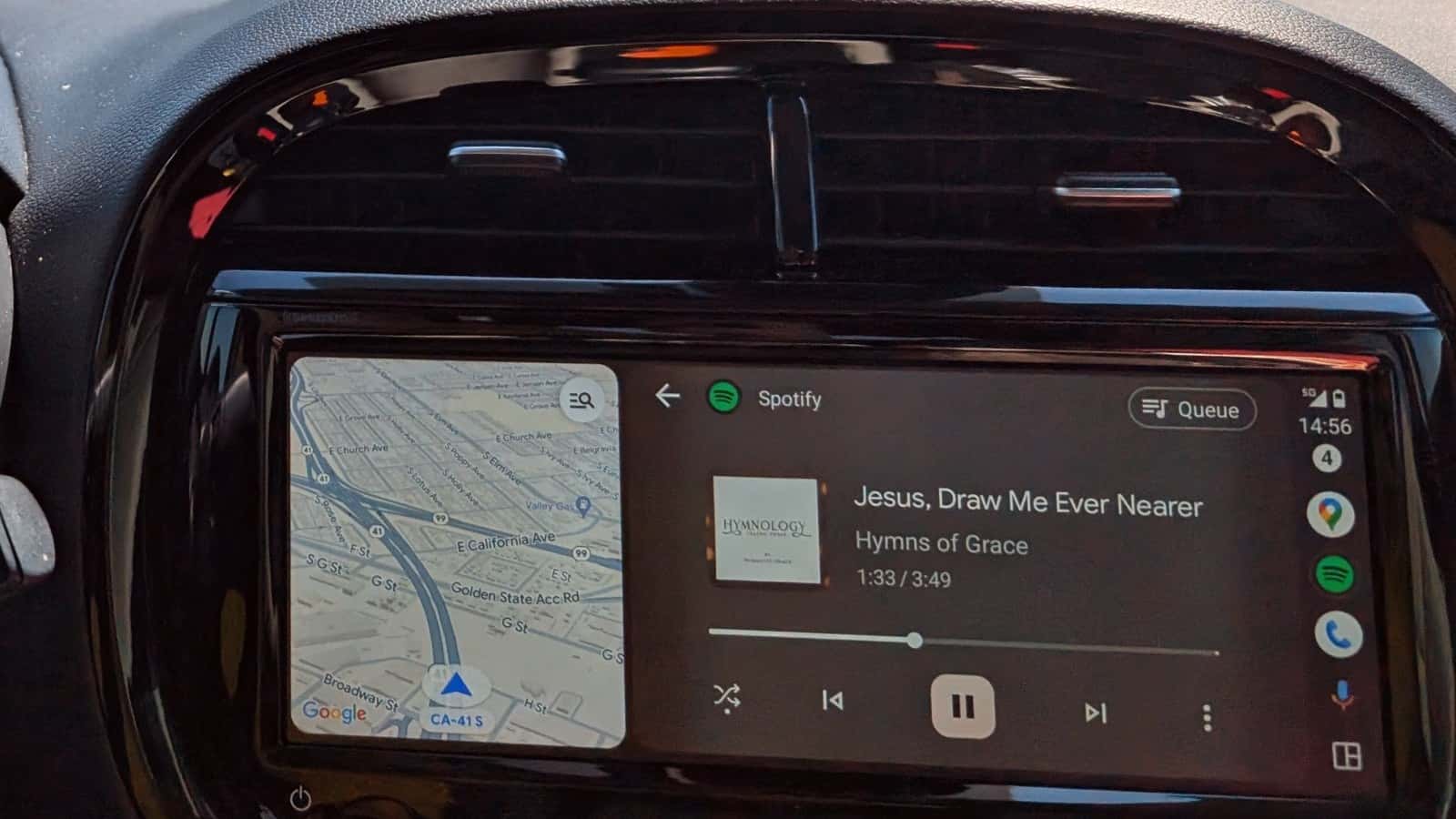
Assess the physical display, too. Can you read the next turn from a normal driving position? Is the map still useful beside an audio panel? Can a passenger change the music without obscuring directions? A large advertised screen size does not answer those questions.

Voice control: Siri versus Gemini
CarPlay uses Siri for supported requests such as calls, directions and messages. Apple’s CarPlay setup and control guide explains the steering-wheel button, onscreen control and supported voice activation options. It also covers rearranging apps and deciding whether messages are announced.
On Android Auto, Google’s current Gemini guidance describes calls, messages, navigation, music and conversational requests. It specifies Android 11 or newer, at least 2 GB of RAM, Gemini selected as the phone’s digital assistant and a compatible vehicle. Language, region and setup affect availability; an Android Auto logo alone does not prove a particular assistant feature is ready.
The useful comparison is whether your everyday requests work clearly in that cabin. While parked, try a destination with a name you normally use, a call to a contact and a short message. Check the selected recipient and dictated wording before sending. Voice recognition, account access and the microphone all belong in that demonstration.
Conversational ability should not be confused with dependable judgment. Google warns that Gemini can be inaccurate and should not be relied on for critical or safety-related matters while driving. Treat an assistant as a convenience, and stop somewhere safe when a request needs attention or verification.
Wired versus wireless: convenience has to match the car
A wired connection gives you a defined cable and port to check. Use the vehicle’s designated data port and a suitable cable; a phone charging successfully does not prove that the data connection is working. Confirm the connector at both ends rather than assuming an older cable instruction fits every current phone.
Wireless projection removes the need to plug in for each connection, but it has its own compatibility requirements. Bluetooth being available for calls is not enough. Google’s requirements include 5 GHz Wi-Fi support, while Apple’s instructions distinguish USB-only, wireless and dual-mode vehicles. Follow the setup path for the actual receiver.
Do not confuse wireless projection with wireless charging. They answer separate questions: how the phone sends the supported interface to the screen, and how the battery receives power. Check each feature independently. On a longer journey, decide where the phone will sit and how you will keep it charged without obstructing the controls.
For a wired-only car, investigate an adapter by exact receiver compatibility and return terms before buying. A product described as a wireless adapter should not be treated as proof it can add a projection platform the vehicle never supported. If replacing the stereo is the plan, confirm the installation requirements and retained vehicle functions with the installer.
The 2026 updates: separate a platform promise from your dashboard
Google’s May 12, 2026 Android-in-car announcement describes a refreshed Android Auto interface, widgets, updated navigation and entertainment features rolling out through the year. The release is useful context, but its future-tense descriptions are not confirmation that every compatible car has received every change.
On Apple’s side, current CarPlay documentation describes widgets, Live Activities and video capabilities for supported cars when parked. These are feature-specific capabilities, not permission to display any phone app in any CarPlay-equipped vehicle.
That distinction matters for parked entertainment. Google announced video playback for supported cars and apps; Apple documents supported parked-video apps and vehicle integration. Before expecting a streaming service to work, verify the exact car, software and app. Neither platform’s parked-video support should be read as a feature for watching while driving.
For a car you are considering now, evaluate what its installed software does now. A promised future feature can be interesting, but it should not substitute for the navigation, audio and phone functions you need on the first drive.
Android Auto, Google built-in and CarPlay Ultra are different things
Android Auto brings supported apps from your Android phone to a compatible vehicle display. Google built-in means Google apps and services run in the vehicle’s own system. Seeing Google Maps in a car therefore does not, by itself, tell you which arrangement you are using—or whether the car supports phone projection.
CarPlay Ultra is a deeper, automaker-supported experience that can extend across driver displays, including the instrument cluster, and integrate vehicle functions. Apple says it still relies on the driver’s iPhone; the vehicle’s built-in system continues to power driving functions. It requires specific vehicle support: look for Ultra explicitly in the manufacturer’s equipment documentation. Ordinary CarPlay should not be assumed to become Ultra through a phone update or an announced brand partnership.
The practical question is where each function lives. Ask which navigation, audio and assistant features come from the phone, which run in the car, and what remains available if the phone is absent. Then ask separately about vehicle data plans, account requirements and software support. Similar-looking screens can conceal different ownership arrangements.
Costs, connectivity and privacy: ask for the complete picture
Break the budget into the vehicle’s installed equipment, any cable or accessory, phone data, app subscriptions and any separate connected-car service. Calling the dashboard feature “included” does not establish what your preferred streaming app or a vehicle’s native services will cost. Ask for an itemized explanation of any plan presented as necessary.
Plan for weak mobile coverage by checking the navigation app’s own offline options and downloading any supported content before departure. Do not assume that a map image remaining visible means traffic, search, streaming audio and voice services are all still available. The answer depends on the app and the connection.
Review message announcements, contacts access and the information shown to passengers before making the car part of your daily routine. On a borrowed, rental or test-drive vehicle, follow the vehicle’s instructions to remove your phone and any saved personal information when finished. This is a useful ownership habit regardless of the platform you choose.
The buying verdict: test the combination you will actually own
For an iPhone owner, CarPlay is the relevant phone-projection choice. For an Android owner, Android Auto is the relevant choice. If you are choosing a phone as well as a car, start with the services and apps you already rely on, then compare their behavior in the actual vehicle. Changing a phone ecosystem to accommodate an untested dashboard can create a much larger decision than expected.
Use this parked demonstration before the test drive:
- Connect your own phone. Use the wired or wireless method you intend to use daily.
- Open a familiar route and audio app. Check readability, volume and the location of essential controls.
- Try the supported voice button. Verify a destination, contact and dictated message without rushing.
- Check the other driver’s phone. Establish how to switch users if the car will be shared.
- Confirm the installed equipment. Record any unresolved limitation, optional hardware or plan requirement.
If CarPlay repeatedly drops, the CarPlay connection troubleshooting guide separates cable, wireless and app symptoms. When the display itself is difficult to operate, consider the wider trade-offs between physical buttons and touchscreens.
A good phone interface should make the car easier to live with. Choose the setup that works with your phone, supports your essential tasks and lets you operate the vehicle comfortably. The platform badge is the starting point; the complete phone-and-car combination is the product you will use.
Android Auto and CarPlay: common questions
Can an iPhone use Android Auto?
No. Use CarPlay with a compatible iPhone. Android Auto requires a compatible Android phone; a vehicle supporting both lets drivers choose the appropriate system.
Do I have to use Apple Maps with CarPlay?
No. Apple lists supported alternatives including Google Maps and Waze. Install and configure the app you want, then check its available in-car functions.
Does Bluetooth mean the car has wireless CarPlay or Android Auto?
No. Bluetooth calling support and wireless phone projection are different capabilities. Verify the exact car or receiver and demonstrate the connection with your phone.
Does a bigger screen make one system better?
Screen size alone does not decide usability. Check viewing position, text, touch targets and physical controls in the actual vehicle, with the layout and apps you will use.
0 comment(s) so far on Android Auto vs. Apple CarPlay: Which Is Better in 2026?