

Apple CarPlay Keeps Disconnecting? Checks That Narrow It Down
Phone and car
When Apple CarPlay drops out, start with the connection you actually use. A charging cable, a wireless pairing and an app that stops responding are different problems. A few documented checks can narrow the complaint before you spend money on a fix.
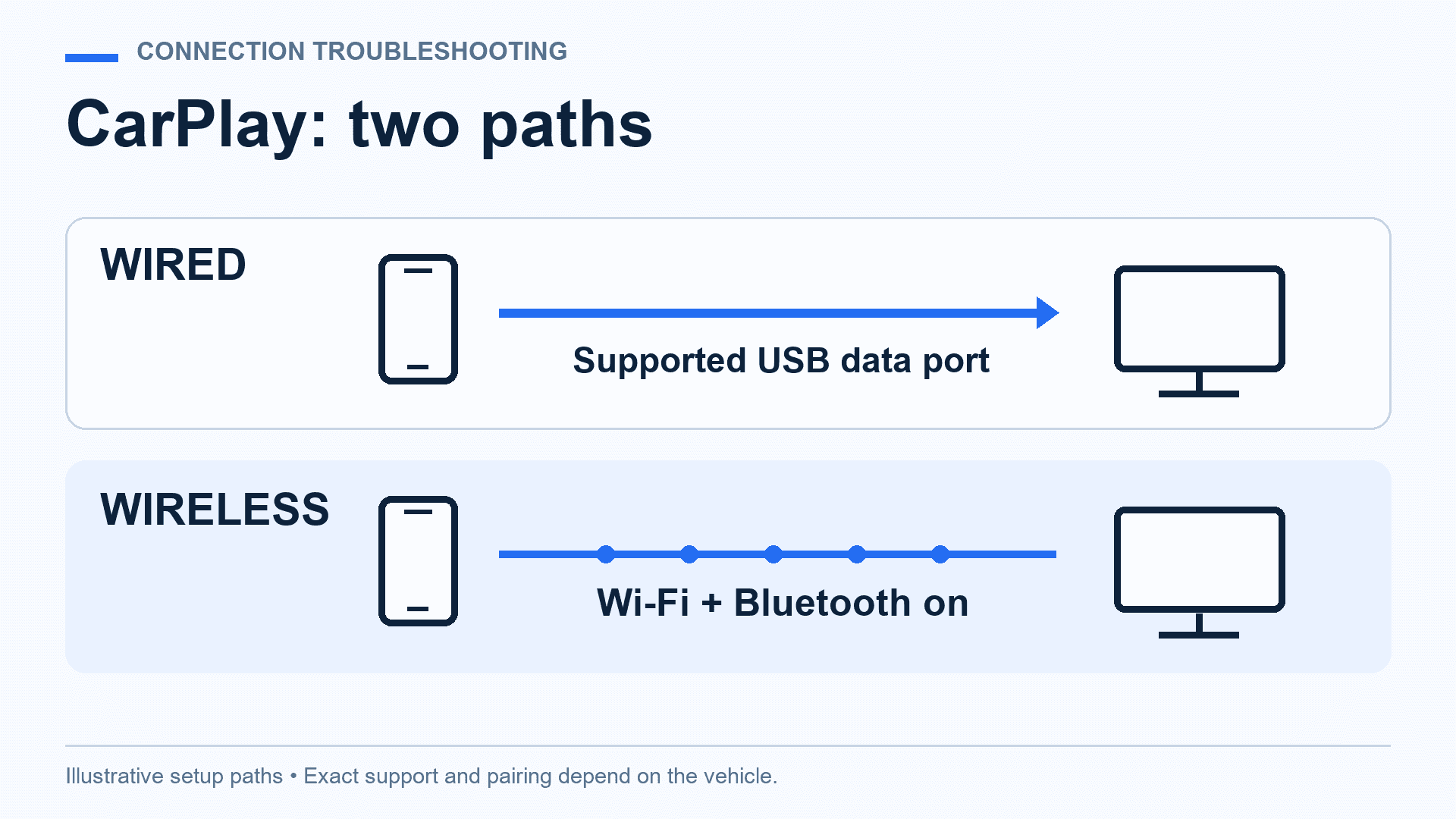
Start by describing the interruption. Did the entire CarPlay screen disappear, did the phone fail to reconnect when you returned to the car, or did one app stop responding while the interface stayed visible? Those are different observations. A useful troubleshooting record preserves that distinction instead of calling every audio or navigation problem a disconnection.
Make setup changes while parked. Record the vehicle and model year, the stereo if it has been replaced, the iPhone model and iOS version. Also note whether the connection is wired, factory wireless or through an added adapter. The same symptom can involve different equipment.
Confirm which connection you are using
Apple’s setup guidance separates USB, wireless and systems that support both. Some compatible vehicles offer wireless use after an initial USB connection. A successful Bluetooth phone call alone does not establish that a wireless CarPlay session is active.
Use the vehicle’s manual to identify the supported setup. If an aftermarket wireless adapter is involved, keep its make and firmware version in the record. Compare the vehicle’s documented original connection before adding another accessory to the troubleshooting chain.
For wired CarPlay, check the data path
A phone can charge from a port that does not support CarPlay. The 2025 U.S. Honda CR-V manual, for example, distinguishes its CarPlay/audio USB connection from separate charging-only ports. That is a model-specific illustration, not a rule that every port with a certain shape or power rating supports data.
Apple’s CarPlay troubleshooting instructions recommend another cable or USB port when available. First establish which ports the car actually supports. Then compare a suitable replacement data cable in the same supported port, keeping the phone and other settings unchanged. If the car has only one CarPlay data port, a charging-only socket elsewhere is not an equivalent comparison.
Write down the result before changing something else. Replacing the cable, changing ports and updating software at the same time may restore the connection, but it leaves little evidence of which change mattered. A working parked session is useful evidence; it does not demonstrate reliability over a trip you have not made.
For wireless CarPlay, check the pairing settings
Apple’s wireless instructions call for Bluetooth and Wi-Fi to be enabled and the CarPlay network’s Auto-Join setting to be on. Check those documented settings before assuming the vehicle needs a replacement module. Use the exact pairing process in the car’s manual, especially when its display also lists ordinary Bluetooth audio connections.
If the car supports both connection types, compare its documented wired connection with wireless use. A difference gives support a more precise complaint: for example, wired setup succeeds but wireless reconnection does not. It does not, by itself, prove whether the phone, software or vehicle is responsible.
Keep one change and one result together
| Check | What to record |
|---|---|
| A different suitable cable | Same phone and supported data port; did CarPlay launch and remain visible during the parked check? |
| Wireless setup | Bluetooth, Wi-Fi and Auto-Join settings; initial pairing versus reconnection failure. |
| Another compatible iPhone, if available | The second phone’s model/software and the same connection method; do not merge the two results. |
| Software or pairing change | The version or setting changed and whether the original symptom returned afterward. |
Separate the phone update from vehicle firmware
Apple’s vehicle connection guide calls for current iOS and current vehicle software. These are separate checks: updating the phone does not establish that the stereo has its latest manufacturer firmware. Ask the vehicle or stereo maker how to identify the installed version and obtain an applicable update.
Apple also includes restarting the phone and car, checking Siri and CarPlay restrictions, and forgetting then setting up the car again among its troubleshooting steps. Keep the results with the earlier cable or wireless observations rather than repeatedly starting over without notes.
If the problem continues, give Apple or the vehicle/stereo support team the equipment list, versions and short sequence of results. Include whether the whole interface disappears, one app fails, or reconnection is the problem. That record offers a better next step than replacing hardware because a single online fix worked on a different car.
0 comment(s) so far on Apple CarPlay Keeps Disconnecting? Checks That Narrow It Down